Project Initiation
General System & Permissions
Release Notes
January 2026
May 2025
September 2024
June 2024
January 2024
December 2023
September 2023
August 2023
July 2023
June 2023
May 2023
Supplier Management How-To Guides
Supplier Admin & Information Management
Data Governance Dashboard
Supplier Creation
Onboarding Management Plans
Completing Activities
Assigning Classifications to a Supplier record
Issuing an External Assessment
Supplier Status
Supplier Onboarding Dashboard
Assigning Contacts & Stakeholders
Uploading Documents to a Supplier record
Suppliers Dashboard
Supplier Compliance Management
Assigning Insurances and Certifications
Insurances & Certifications Dashboard
Team Governance Dashboard
Assessment Summary Dashboard
Supplier Risk & Issue Management
Issuing a Risk Assessment
Risk Assessments Dashboard
Creating a Supplier Risk
Managing a Supplier Risk
Creating a Supplier Issue
Managing a Supplier Issue
Supplier Risk Management Dashboard
Supplier Relationship & Performance Management
Contract Management How-To Guides
Contract Admin & Information Management
Contract Creation
Assigning Classification(s) against a Contract record
Contract Health Drivers & Checklist Completion
Contract Setup Dashboard
Uploading Documents to a Contract record
Contracts Dashboard
Foreign Currency
Contract Milestone & Key Date Management
Contract Renewals Management
Sourcing Management How-To Guides
Creation and Planning
Sourcing Activity Creation
Planning Tab
If you are Planning with Quick Quotes
If you are Planning with Opportunities Hub
Completing the Planning Phase
At Market
If you are At Market with an external tool
If you are At Market with Quick Quotes
If you are At Market with Opportunities Hub
Completing the At Market Phase
Evaluation
Outcome
Procurement Act 2023
Procurement Act Introduction and Navigation
Transforming Public Procurement
Source- to-Contract and the Procurement Act
Source-to-Contract Procurement Act Prerequisites
Navigating Procurement Act Features Within Source-to-Contract
Overview of Procurement Act Notices
Procurement Act Deep Dive
Bolt Ons
Additional Help
Knowledge Deep Dive
Process Templates (Contracts)
Process - For System Users
Contract Stage Progression Process
Requesting Stage Approval
Approving Stage Approval Requests
Variation Process
Requesting Variation Approval
Approving Variation Approval Requests
Contract Process Comparison
Configuration - For System Administrators
Supplier Categories
Management Plans
Artefact Groups
Activities
Triggers and Schedules
Supplier Data Requests
Delegation of Authority - Configuration
Delegation of Authority - Process
Terminology & Configuration Guides
Frequently Asked Questions
Where can I find information on the Procurement Act features?
Why can't I apply a variation against my contract?
How do I filter within Analytics?
I cannot access certain areas of the system, why?
How do I switch email alerts on?
How do I 'Finalise' my contract?
How long does it take for Analytics to update?
What file types can I upload?
The OneAdvanced Customer Support Portal
Admin: How can I assign a User the 'Contract Manager' role on the Customer Support Portal?
How to raise a Support case?
Admin: How can I remove a User from the Customer Support Portal?
Customer Portal Guide
Admin: How can I grant Admin permissions to a User on the Customer Support Portal?
Admin: How can I find my organisation's Registration Code?
How do I access the OneAdvanced Customer Support Portal?
Admin: How do I approve a new User on the Customer Support Portal?
How can I raise a finance case with OneAdvanced?
- All categories
- Additional Help
- Knowledge Deep Dive
- Supplier Categories
Supplier Categories

Applicable modules: Supplier
Overview
In supplier management, categorisation is pivotal in streamlining processes and mitigating risks. The standard system configuration provides four supplier categories—Standard, Preferred, Strategic, and Uncategorised—as a foundational framework within which suppliers can be organised and managed effectively.
Within each category, suppliers are further segmented according to risk levels: Unassessed, Low risk, Medium risk, and High risk. This segmentation enables organisations to develop tailored management plans, ensuring that supplier relationships are nurtured, and risks are managed proactively.
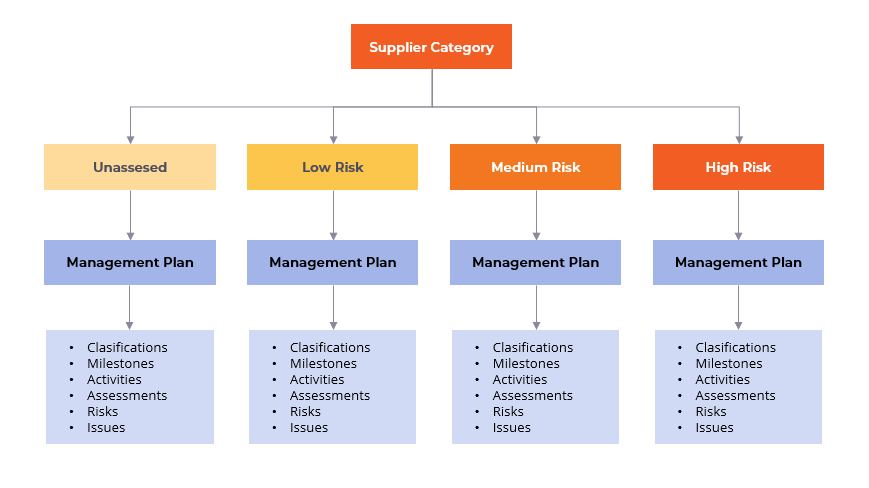
While the provided standard config helps optimise supply chains, foster supplier partnerships, and enhance operational efficiency, the system does allow for further customisation and introduction of new categories, to tailor operations to meet specific needs.
Create and Edit
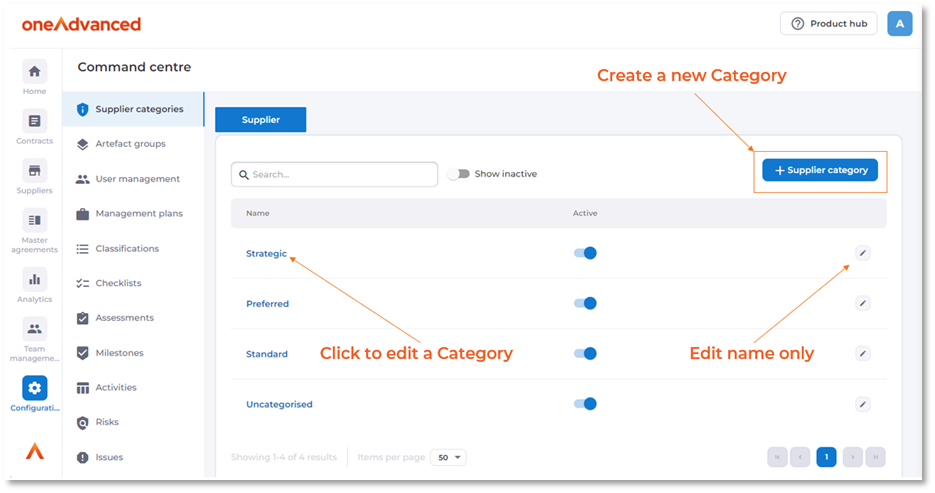
System administrators can add new supplier categories by clicking ‘+ Supplier Category’ via the Command Centre’s ‘Supplier Categories’ Navigation item.
Or to edit an existing item, click the ‘Edit’ action button to the right of an existing category.
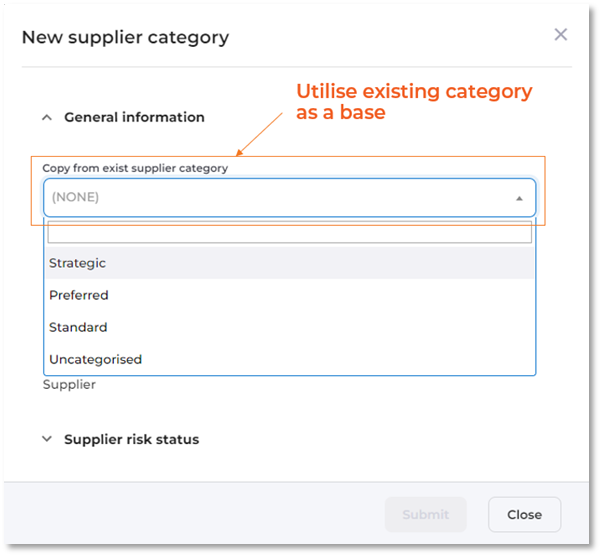
Using the feature to 'copy an existing supplier category' when establishing a new one is a strategy that saves time. It allows for a quick setup by using the framework of an existing category, which can then be customised with minimal changes. If you wish to start from scratch, leave this option as (NONE).
Assigning Management Plans
When you create or modify a category, you'll notice four sections for risk levels: unassessed, low, medium, and high, located under the "Supplier Risk Status" heading.
For each risk category, you can assign relevant management plans by clicking the "+ Add existing management plan" button, aligning them with the corresponding level of risk.
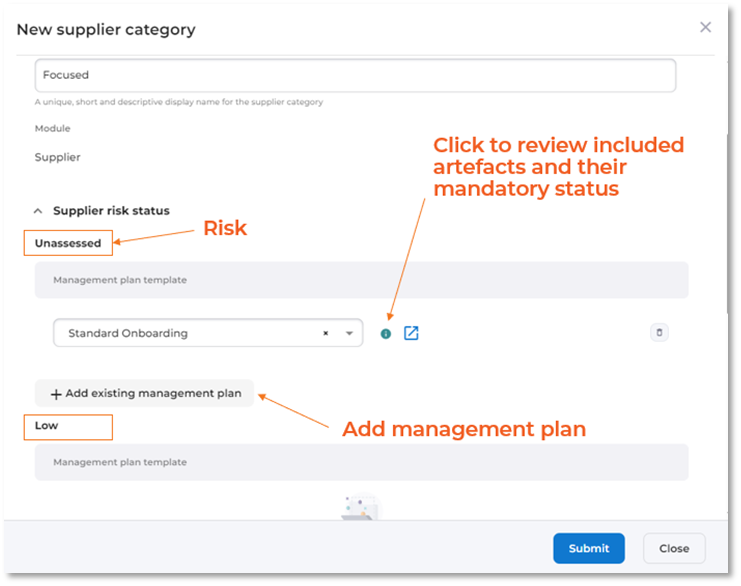
Upon adding a management plan, select the 'i' info button to review the artefacts included within it.
To remove a management plan from a risk level, click the trash bin icon located to the right of the plan.
After associating all the necessary plans, finalise the process by clicking the 'Submit' button. For modifications to an existing category, the 'Save' button will appear for confirmation of changes.
Related Supplier Category tools
When adding a new supplier, users have the option to categorize the supplier. This can be done conveniently through the 'New Supplier Wizard,' which offers guidance in selecting an appropriate category for those who may be uncertain about which one to choose.
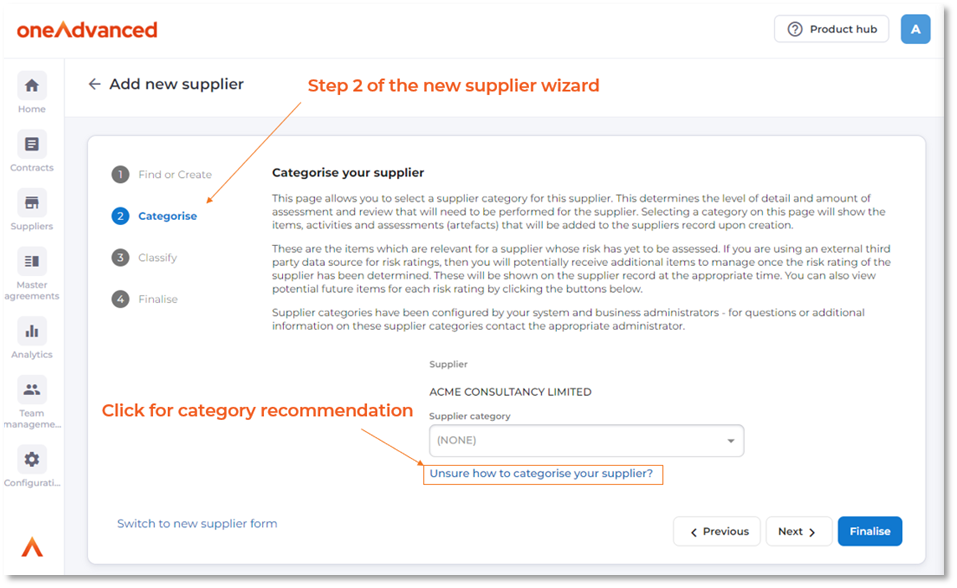
When the user clicks the link for assistance in selecting a category, they are presented with a set of questions to answer. After answering the required questions, a recommendation will be displayed as to what category to classify the supplier as.
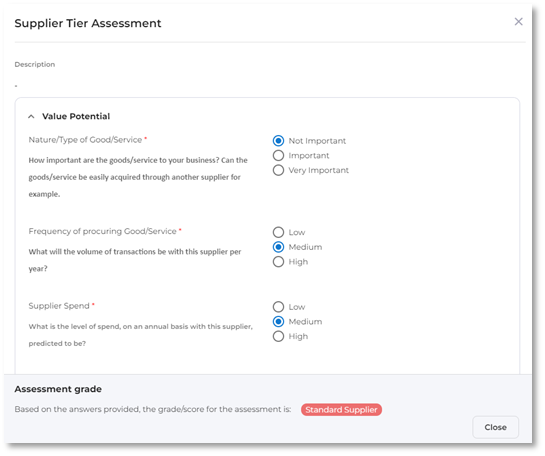
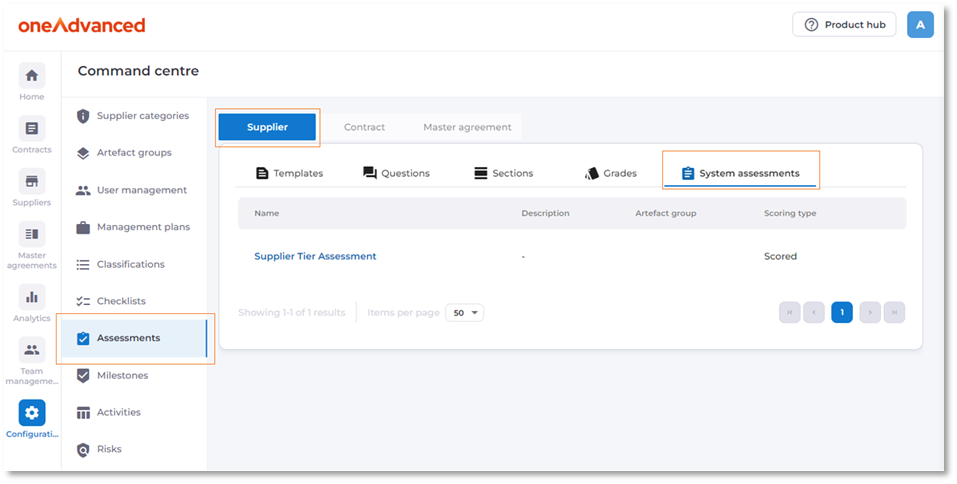
This recommendation tool uses the assessment functionality together with grades. When navigating to the “Assessments” category in the Command Centre, there is a “System Assessment” tab. Questions and their scoring can be configured here. The assessment type MUST remain as “Scored”. Use the Grades functionality to create or edit grades that equal the Supplier categories recommendations.