Project Initiation
General System & Permissions
Release Notes
January 2026
May 2025
September 2024
June 2024
January 2024
December 2023
September 2023
August 2023
July 2023
June 2023
May 2023
Supplier Management How-To Guides
Supplier Admin & Information Management
Data Governance Dashboard
Supplier Creation
Onboarding Management Plans
Completing Activities
Assigning Classifications to a Supplier record
Issuing an External Assessment
Supplier Status
Supplier Onboarding Dashboard
Assigning Contacts & Stakeholders
Uploading Documents to a Supplier record
Suppliers Dashboard
Supplier Compliance Management
Assigning Insurances and Certifications
Insurances & Certifications Dashboard
Team Governance Dashboard
Assessment Summary Dashboard
Supplier Risk & Issue Management
Issuing a Risk Assessment
Risk Assessments Dashboard
Creating a Supplier Risk
Managing a Supplier Risk
Creating a Supplier Issue
Managing a Supplier Issue
Supplier Risk Management Dashboard
Supplier Relationship & Performance Management
Contract Management How-To Guides
Contract Admin & Information Management
Contract Creation
Assigning Classification(s) against a Contract record
Contract Health Drivers & Checklist Completion
Contract Setup Dashboard
Uploading Documents to a Contract record
Contracts Dashboard
Foreign Currency
Contract Milestone & Key Date Management
Contract Renewals Management
Sourcing Management How-To Guides
Creation and Planning
Sourcing Activity Creation
Planning Tab
If you are Planning with Quick Quotes
If you are Planning with Opportunities Hub
Completing the Planning Phase
At Market
If you are At Market with an external tool
If you are At Market with Quick Quotes
If you are At Market with Opportunities Hub
Completing the At Market Phase
Evaluation
Outcome
Procurement Act 2023
Procurement Act Introduction and Navigation
Transforming Public Procurement
Source- to-Contract and the Procurement Act
Source-to-Contract Procurement Act Prerequisites
Navigating Procurement Act Features Within Source-to-Contract
Overview of Procurement Act Notices
Procurement Act Deep Dive
Bolt Ons
Additional Help
Knowledge Deep Dive
Process Templates (Contracts)
Process - For System Users
Contract Stage Progression Process
Requesting Stage Approval
Approving Stage Approval Requests
Variation Process
Requesting Variation Approval
Approving Variation Approval Requests
Contract Process Comparison
Configuration - For System Administrators
Supplier Categories
Management Plans
Artefact Groups
Activities
Triggers and Schedules
Supplier Data Requests
Delegation of Authority - Configuration
Delegation of Authority - Process
Terminology & Configuration Guides
Frequently Asked Questions
Where can I find information on the Procurement Act features?
Why can't I apply a variation against my contract?
How do I filter within Analytics?
I cannot access certain areas of the system, why?
How do I switch email alerts on?
How do I 'Finalise' my contract?
How long does it take for Analytics to update?
What file types can I upload?
The OneAdvanced Customer Support Portal
Admin: How can I assign a User the 'Contract Manager' role on the Customer Support Portal?
How to raise a Support case?
Admin: How can I remove a User from the Customer Support Portal?
Customer Portal Guide
Admin: How can I grant Admin permissions to a User on the Customer Support Portal?
Admin: How can I find my organisation's Registration Code?
How do I access the OneAdvanced Customer Support Portal?
Admin: How do I approve a new User on the Customer Support Portal?
How can I raise a finance case with OneAdvanced?
- All categories
- Sourcing Management How-To Guides
- At Market
- If you are At Market with an external tool
If you are At Market with an external tool

This is the phase in a Sourcing activity's lifecycle where the opportunity is live and supplier responses are being submitted/gathered.
Using an External Market Engagement Tool means that the activity is being advertised and the responses are being gathered separately to the Source to Contract system. Therefore, to manage this activity in the system, the responses need to be manually entered before the activity progresses to Evaluation and Outcome.
To log the responses that have been received from suppliers, you must first navigate to the Suppliers tab of the activity.
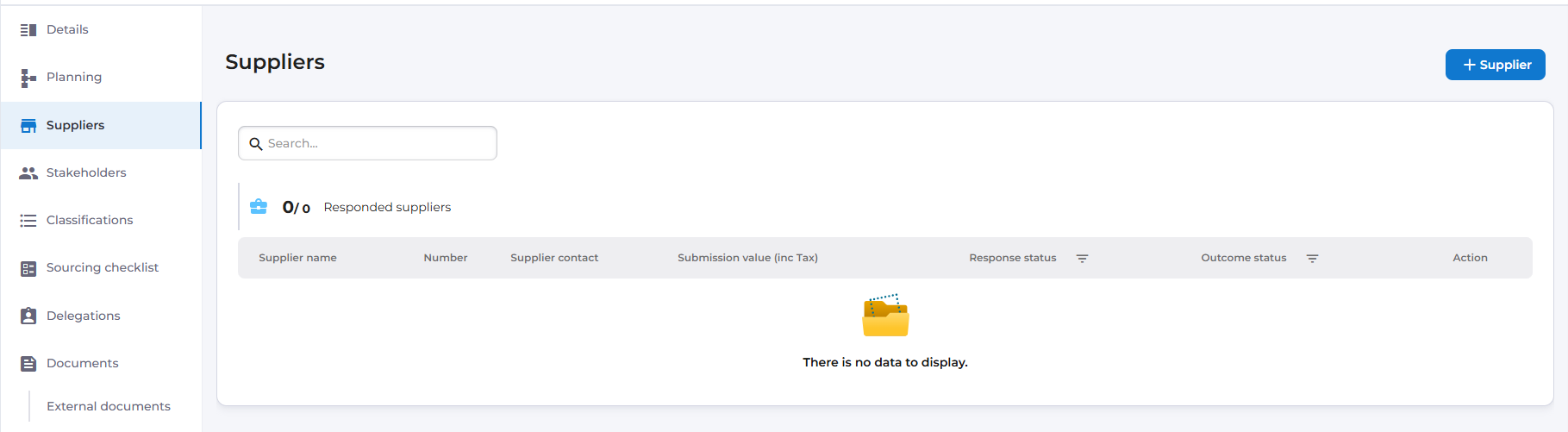
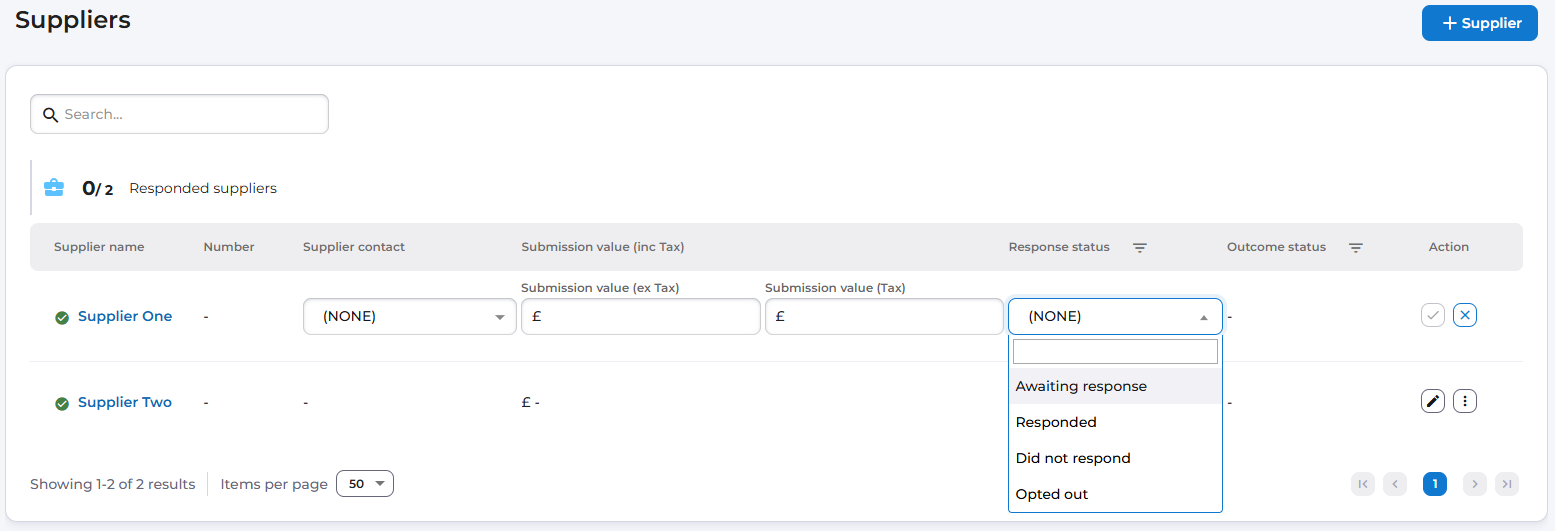
From here you can add the suppliers that have responded to your offering.
To do this, select the + Supplier button on this tab to trigger the following pop-up:
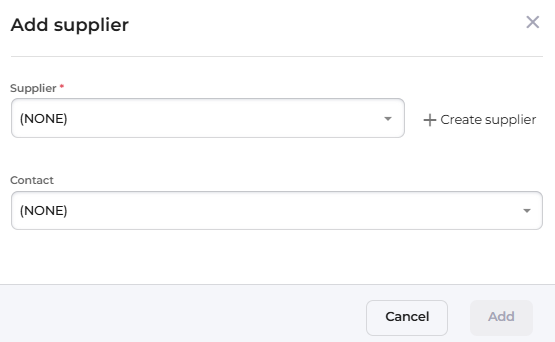
This allows you to record all suppliers involved in the sourcing activity, along with the relevant contact details for their bid.
After adding the suppliers, select each supplier in turn and enter the details of their response.
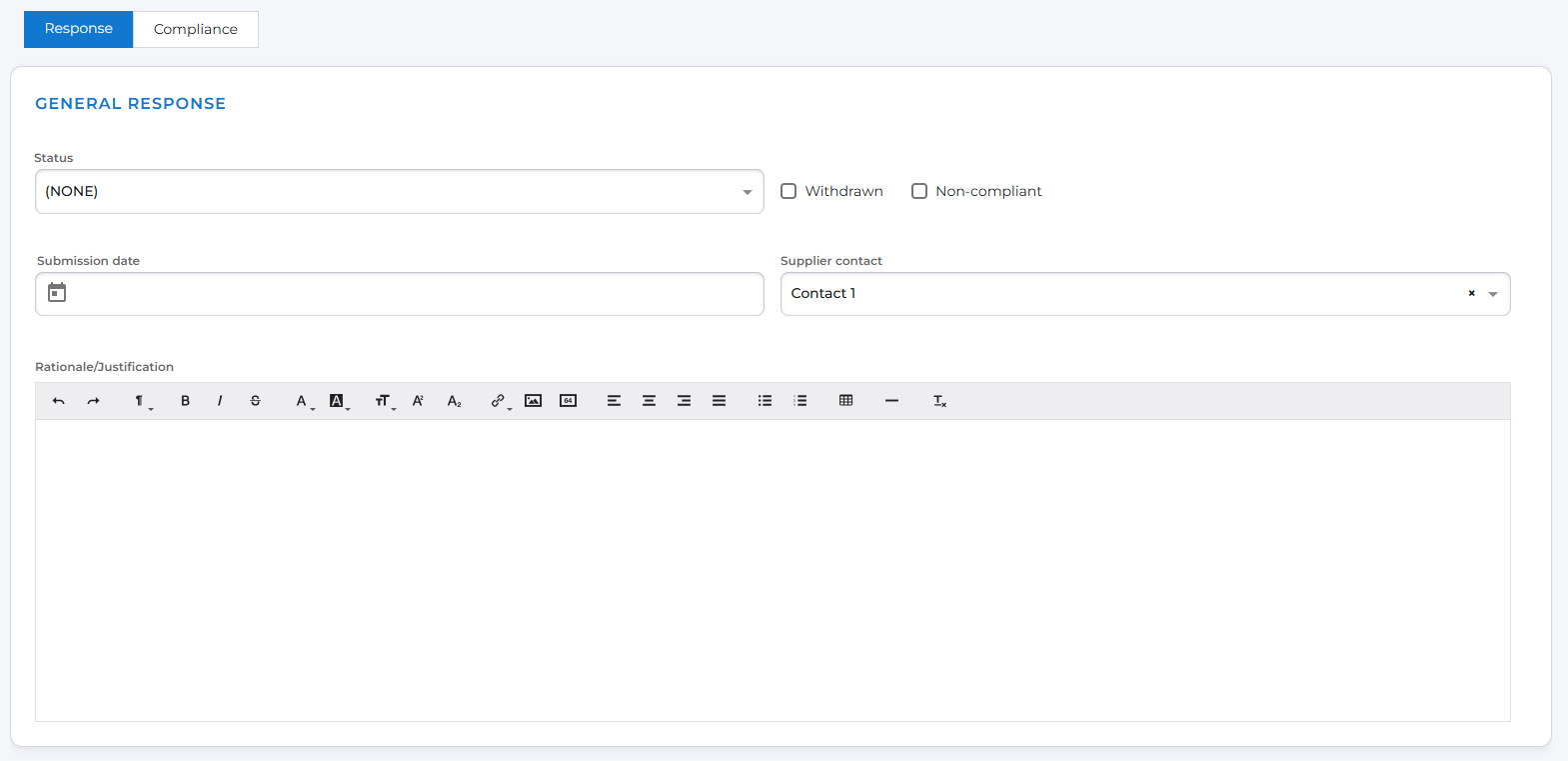
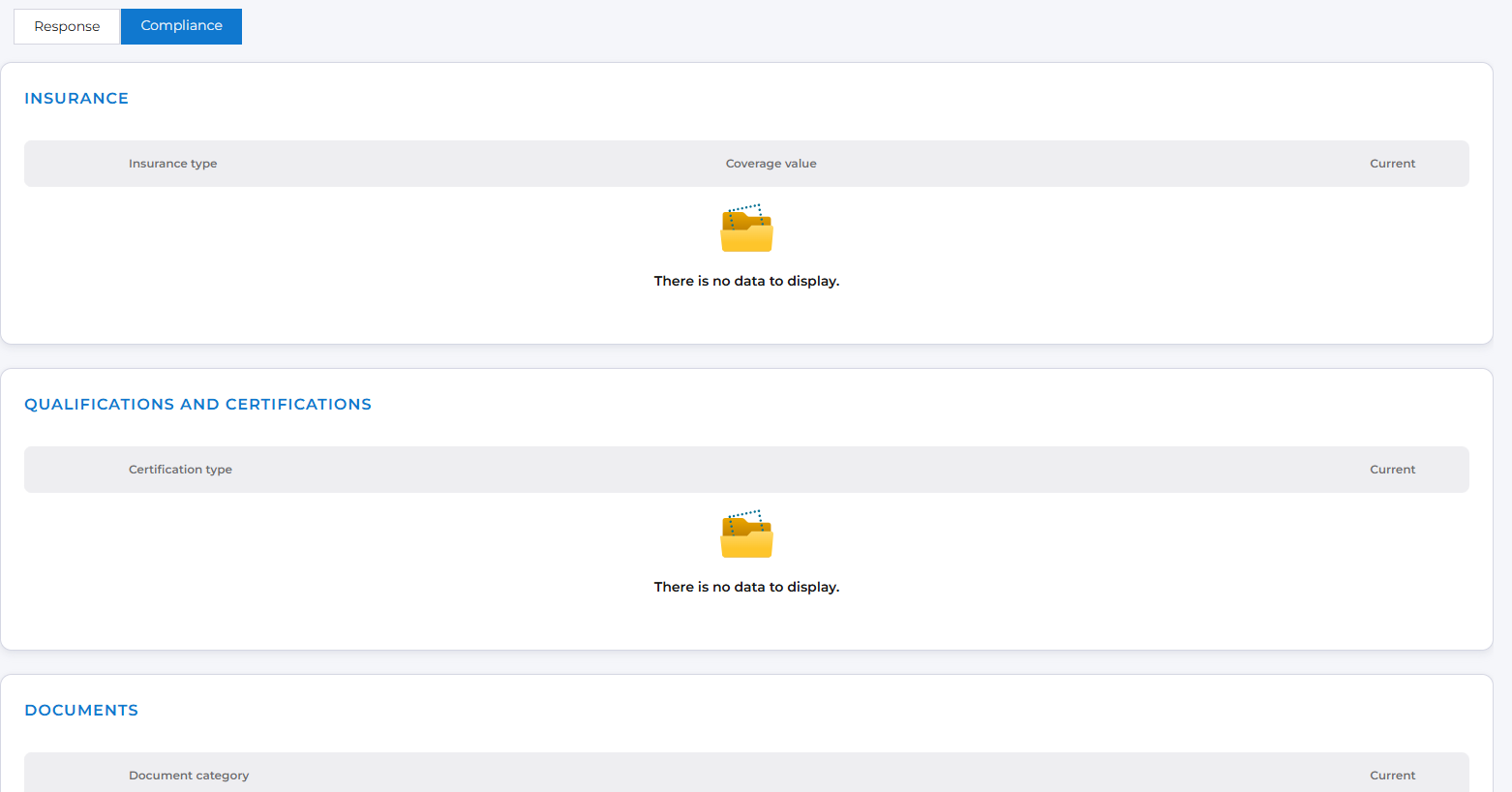
There are two tabs inside a response – Response and Compliance
The Response tab has details surrounding the supplier's bid, presented in different sections that are available to be populated when an External Market Engagement Tool is in use:
- General Response - this section includes fields for the response Status (along with check boxes to indicate whether the Supplier has Withdrawn or is Non-compliant), the Submission date, the designated Supplier Contact and the Rationale/Justification for including/inviting the supplier in the activity should be provided
- Submission Response - which includes the value fields for the bid
- Principal Response Documents - which includes document uploads for the requested principal response documents
- Supporting documents - which includes document uploads for the requested supporting documents
- Evaluation - this section includes indicators for success status (showing whether the supplier was successful or unsuccessful) and an outcome summary box. This information is populated automatically once the supplier's evaluation has been completed later in the process and cannot be entered manually at this stage.
The Compliance tab has sections for each of the requirements from the sourcing activity's creation (Insurances, Certifications and Documents).
The purpose of this tab is not to add these artefacts - It serves as an indicator as to whether they are already held against the supplier record for the bidding supplier.
The system will then automatically update the supplier's compliance tab for their bid.
For all suppliers that were involved in the activity, their response should be logged in the Suppliers tab of the record.
If the response status has not been updated within the supplier response (In the General Response section), users can add this information in the list view in the Suppliers tab of the sourcing activity record: