Supplier View

It is designed to provide system users with visibility of the supplier experience and to support them in assisting suppliers who may have questions about the process.
Suppliers have access to help documentation on the landing page of the Opportunities Hub Portal.
The URL for the Opportunity Hub Portal will be provided during your implementation.
When Suppliers navigate to the Opportunity Hub Portal, on arrival they will be presented with the following page:
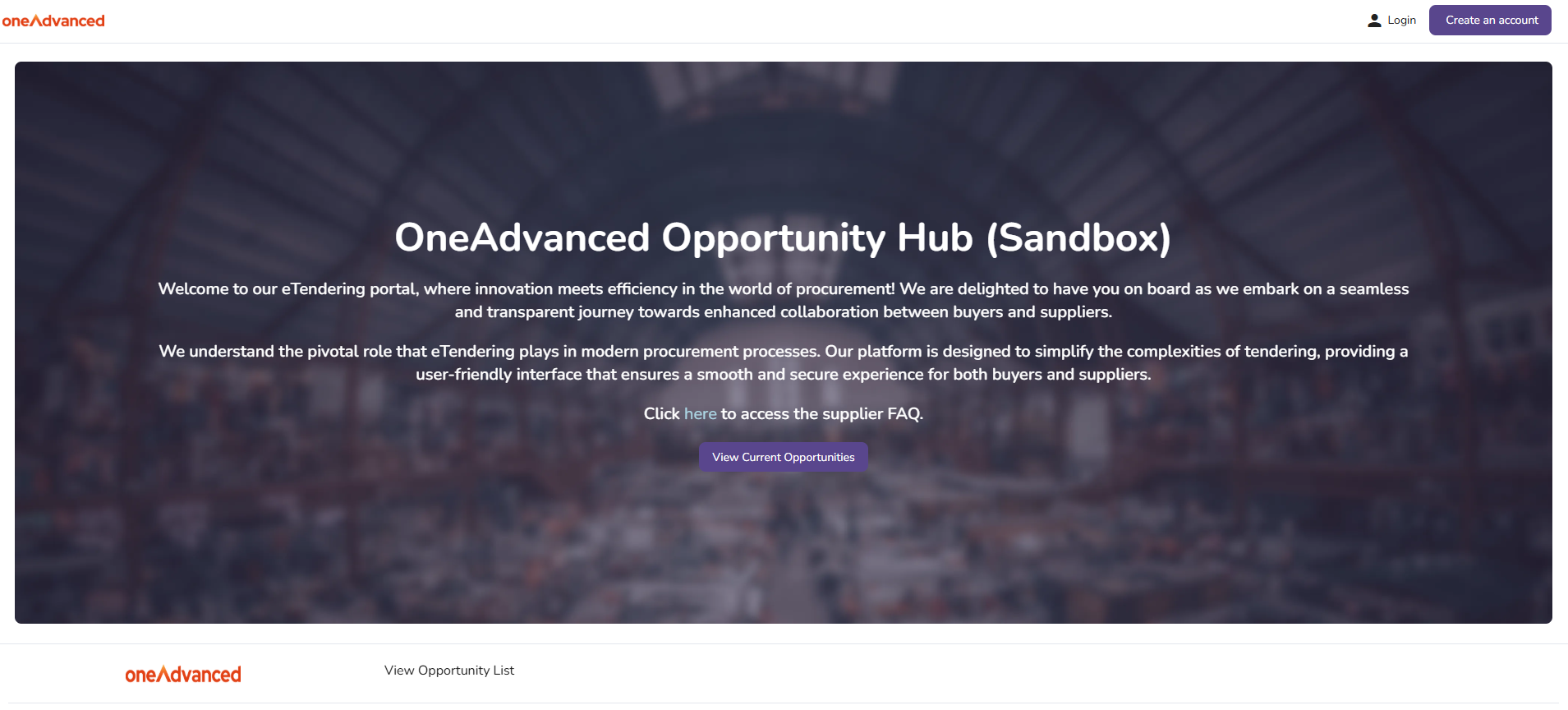
From here, suppliers can:
- Create an account
- Log in
- Select View Opportunity List at the bottom of the page
After any of these options have been completed, the supplier will be presented with a list view of all the advertised opportunities that have been published.
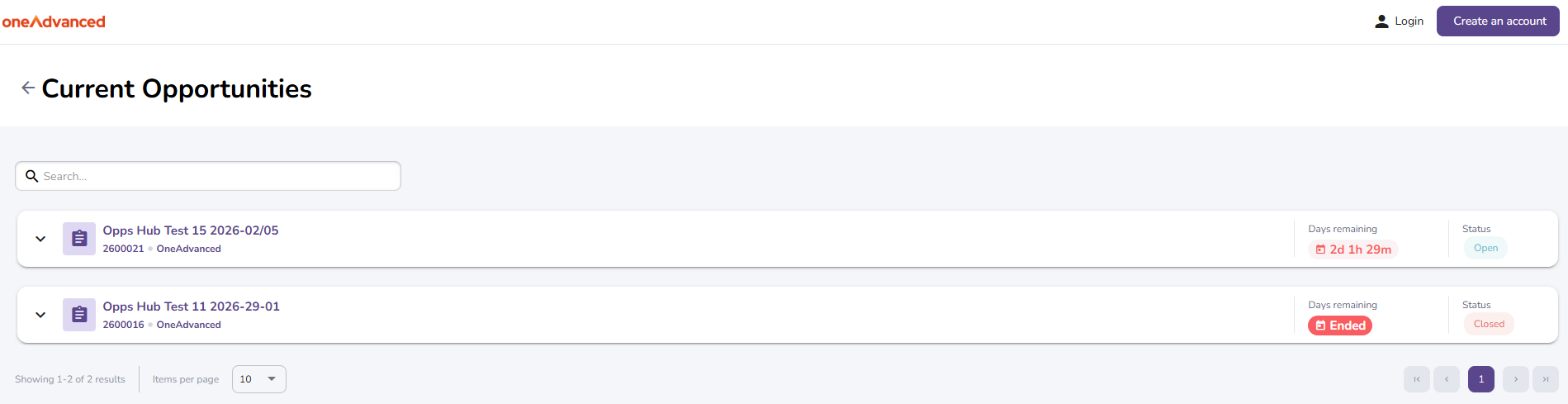
They also have the option to review the supplier FAQs.
List View
As shown above, suppliers accessing the Opportunities Hub are presented with a list view of all available opportunities, along with high‑level details to help them navigate and review each one.
Once a supplier has registered with the Opportunities Hub, further features are enabled for them:
Navigation Panel
A navigation panel is introduced to allow suppliers to navigate to different areas of the hub:
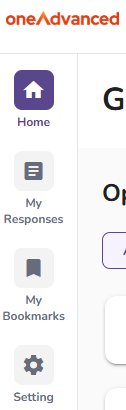
Options include:
- Home - The list view of all opportunities in the hub
- My Responses - A list view of the opportunities for which the supplier has completed or initiated a response
- My Bookmarks - A list view of the opportunities the supplier has bookmarked
- Setting - A user centre for the supplier to update their information
Bookmarks
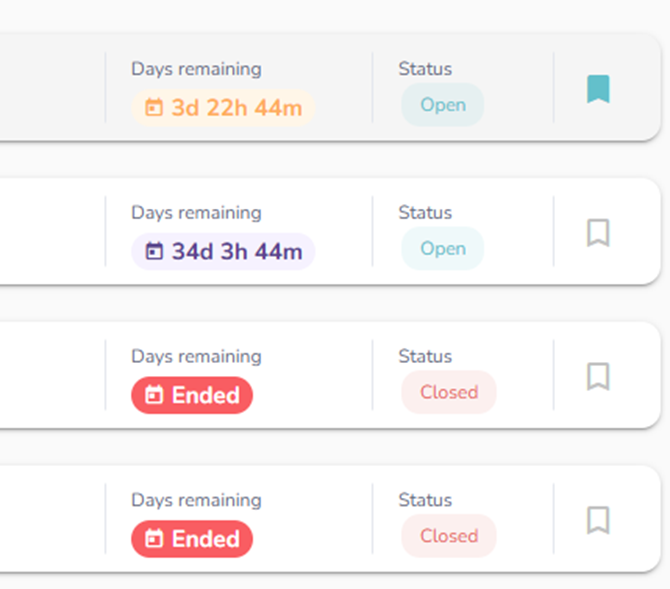
Within the list view of opportunities on the Home page, users can bookmark opportunities to create a shortlist of those for which they may be interested in submitting a bid.
These bookmarked opportunities can then be accessed via the My Bookmarks tab:
Filter
Also within the list view on the Home page, users can filter opportunities so that they only see those matching the categories they have associated with their profile in the Settings.

Respond
Finally, the key functionality available to registered suppliers is the ability to respond to opportunities.
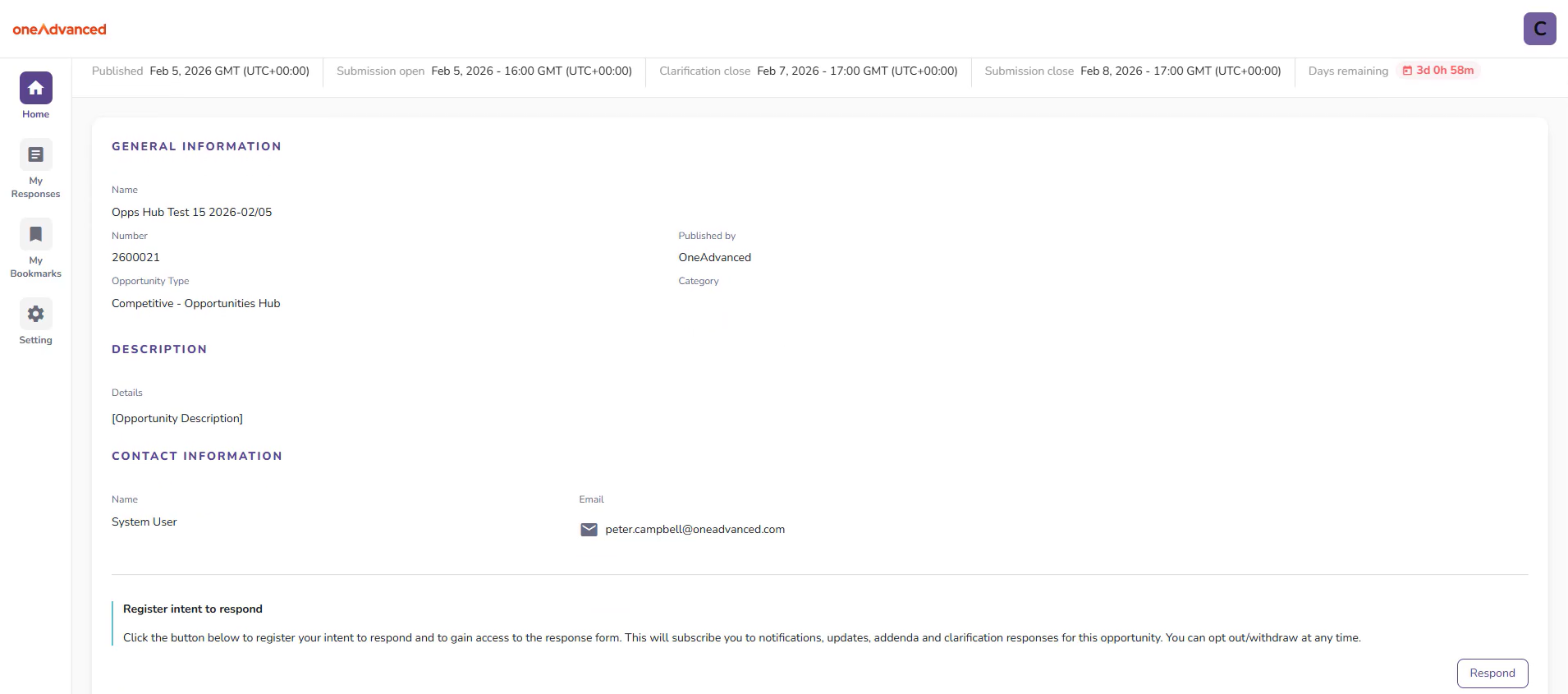
When viewing the details of an opportunity, registered suppliers will see an option to Respond located in the bottom‑right corner:
Engaging with an Opportunity
Selecting Respond will take the supplier into the opportunity itself, where there are four tabs to navigate through:
- Details - Where the full original details about the opportunity are contained, this includes RFx pack, response documents, the evaluation methodology that will be used and compliance requirements.
- Clarifications - Where suppliers can request clarifications from your organisation, either in confidence or with the ability to share the response with all potential bidders.
- Addenda - Where any addenda that you publish about the opportunity will be held for suppliers to review
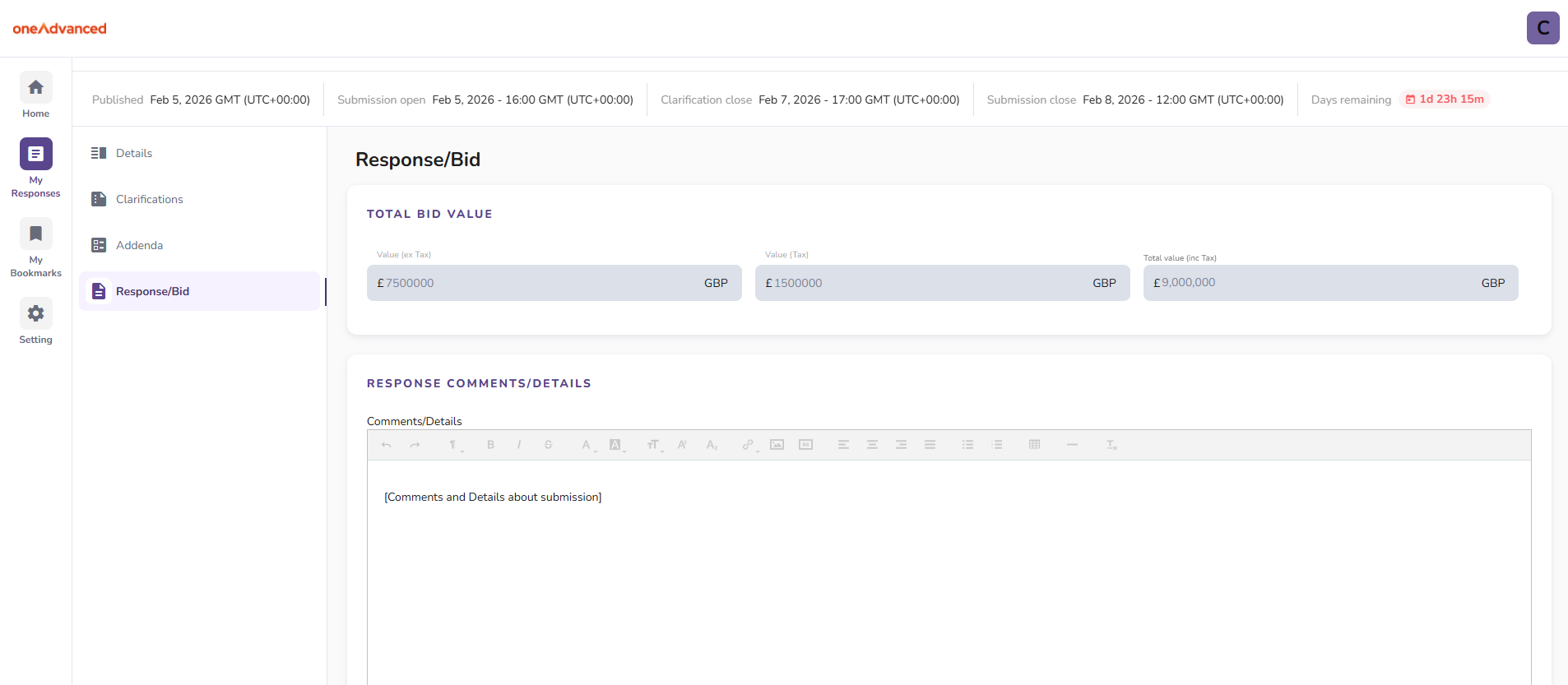
- Response/Bid - where the ability to submit a response to your opportunity is provided to the supplier, including value, comments and document upload capability.
Details
As above, the details tab contains all the details that have been published to suppliers about this opportunity:
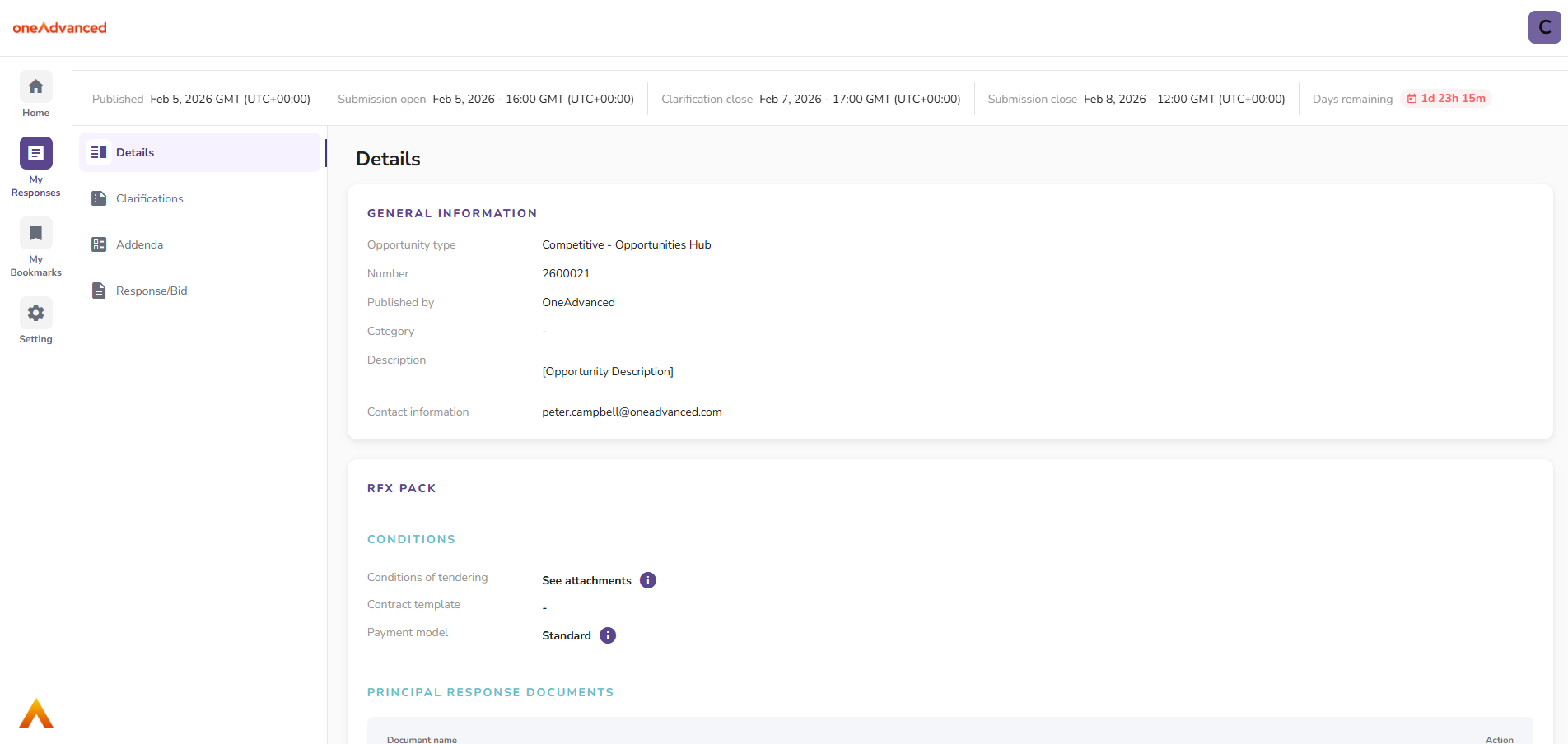
For suppliers, this page provides the ability to review your organisation’s requirements, download the Principal response documents and Supporting documents included within the opportunity, and begin gathering the information needed to prepare their submission.
Clarifications
The clarifications tab allows suppliers to communicate with the sourcing activity owner, asking clarifying questions.
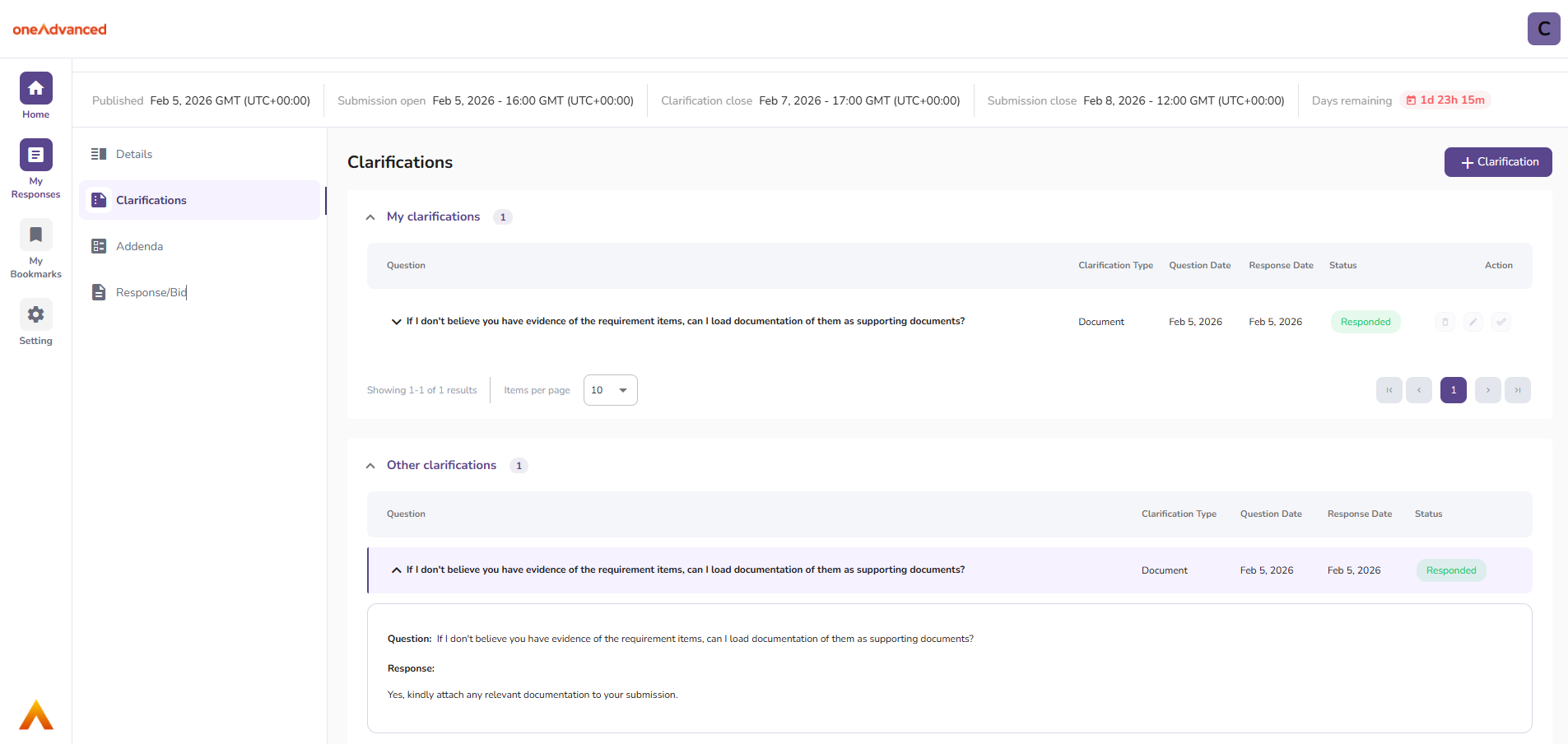
To do this, suppliers select the + Clarification button and fill out the wizard that appears:
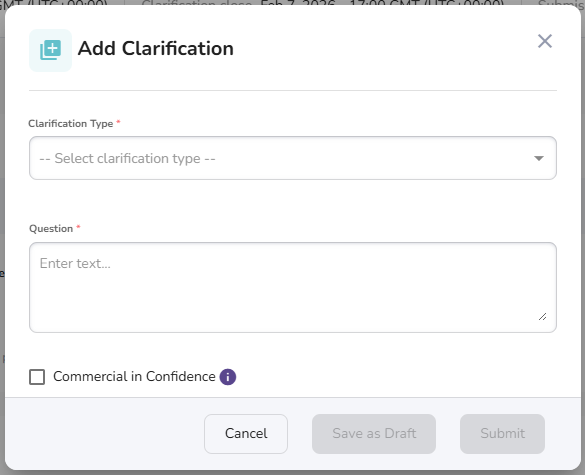
This feature allows the supplier to specify the type of clarification they are submitting (Addendum, Pricing, Requirement, or Document), enter their question, and, if required, mark the enquiry as Commercial in Confidence. When marked in this way, system users will not be able to provide a response that is visible to all suppliers. If the clarification should be shared more widely, you may need to issue an addendum instead.
Should the answer to another supplier's clarification be shared with all potential bidders, this will show in the second section of this page:
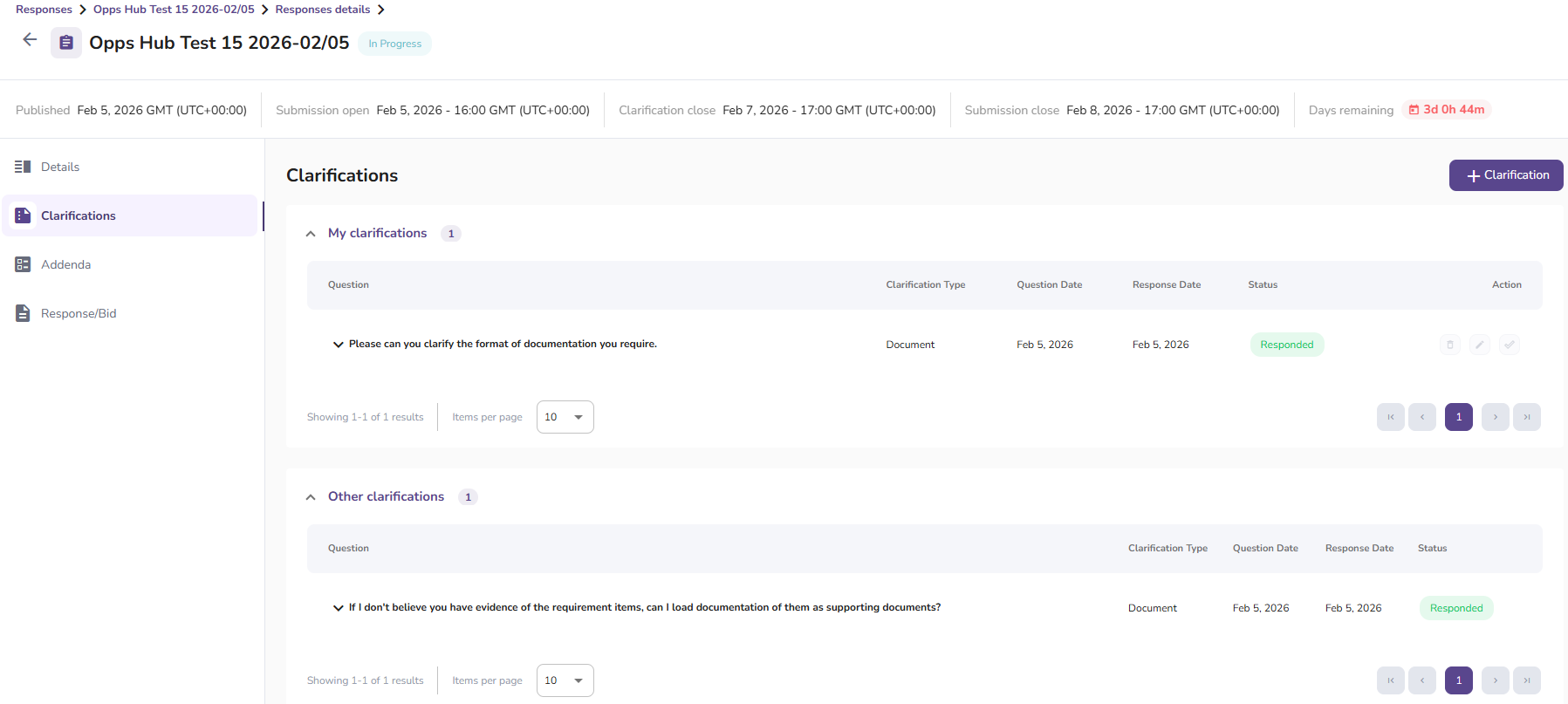
To view the response to a clarification, suppliers should select the dropdown option for the question they wish to review.
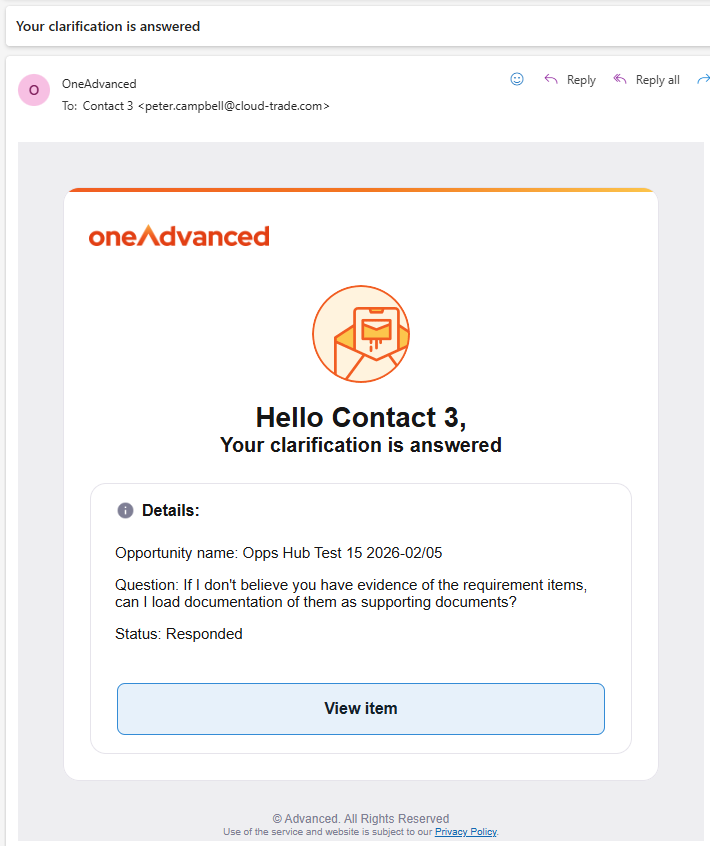
Once a clarification has been answered, the supplier contact who raised the query will receive an email notification:
Addenda
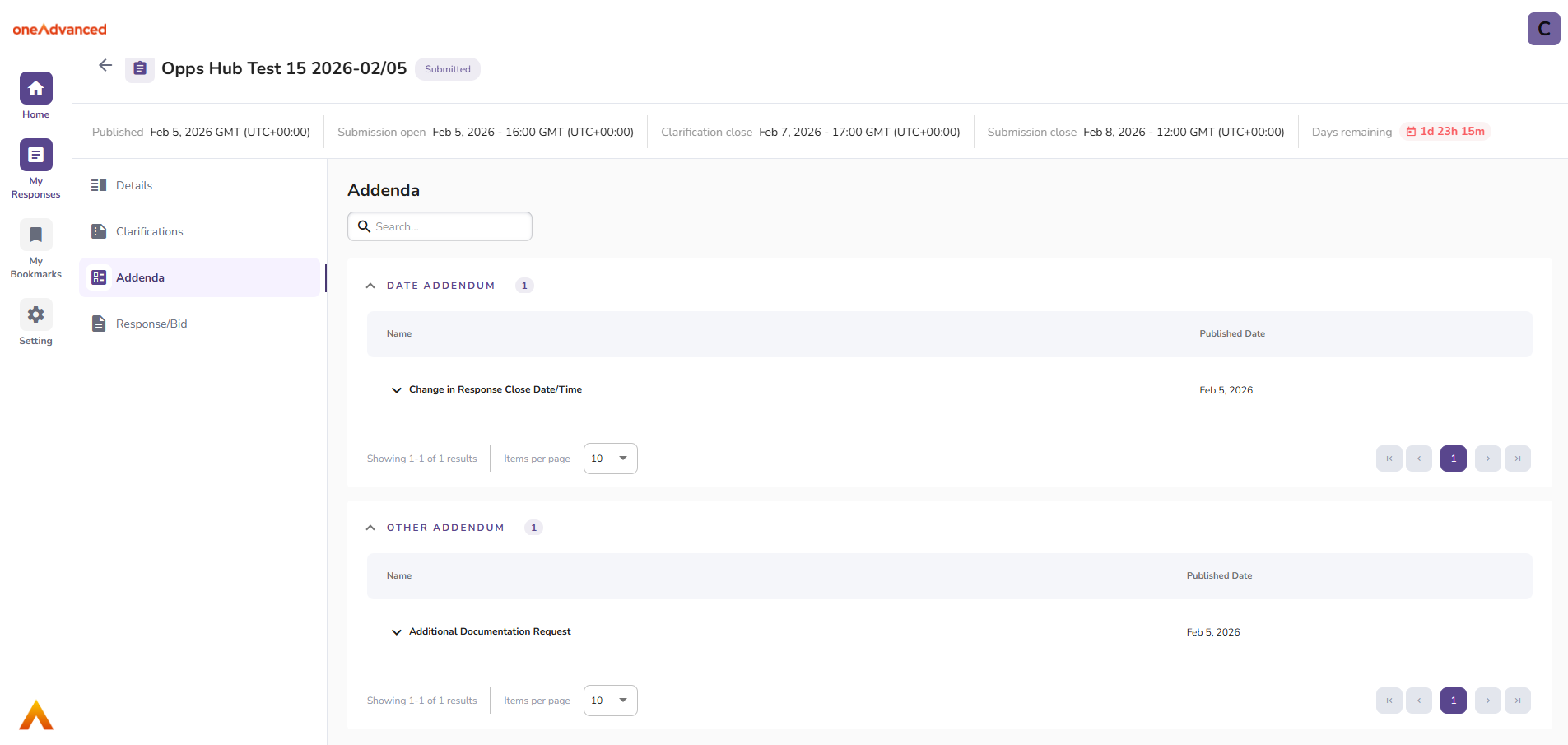
For suppliers, this tab provides visibility of any changes or additions your organisation publishes in relation to the opportunity. In line with the Addenda functionality available to system users, these updates are grouped into two categories: Date Addendum and Other Addendum:
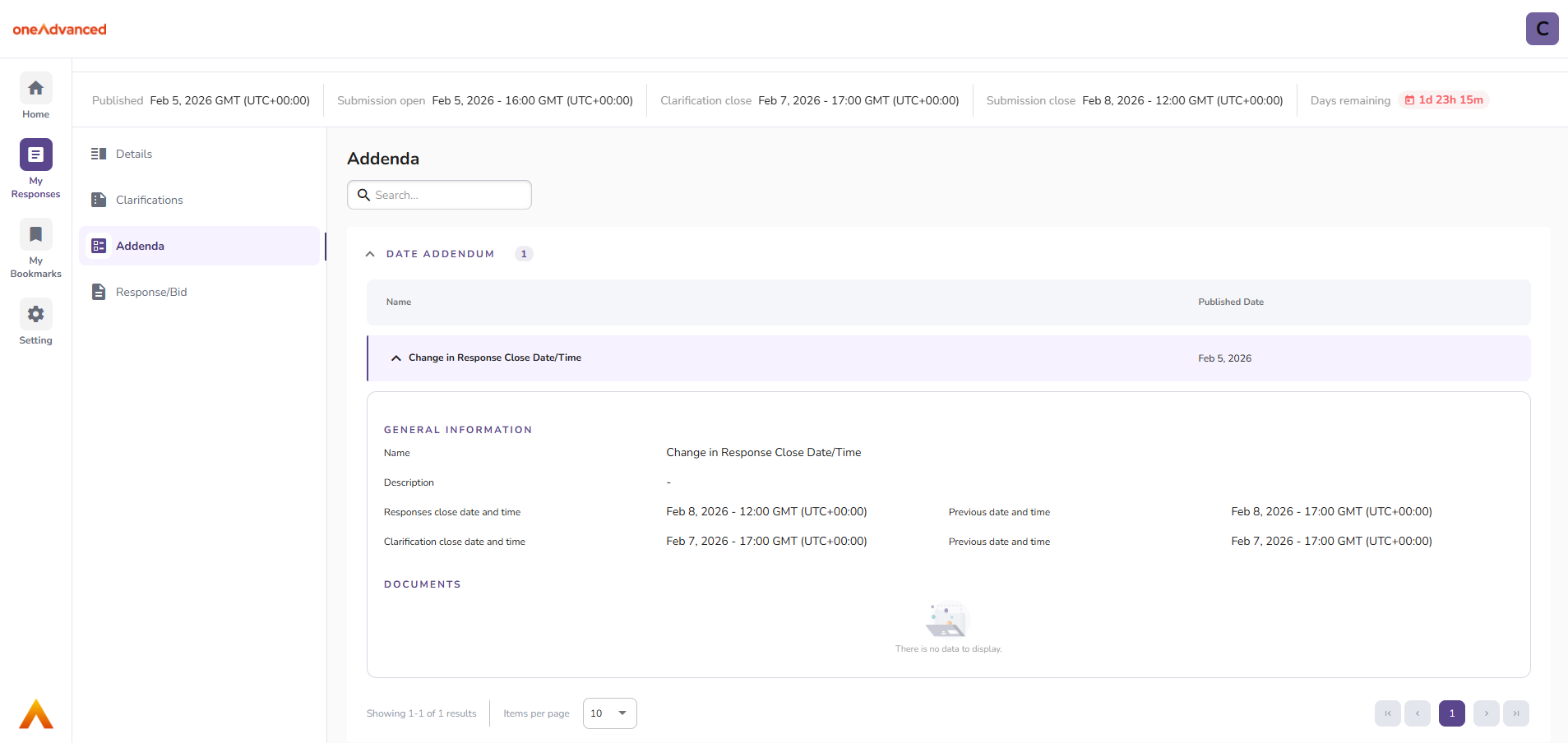
As with Clarifications, suppliers can review the details of an addendum by selecting the dropdown option for the publication they wish to view:
Submitting a bid
Finally, suppliers can navigate to the Response/Bid tab to submit their bid for the opportunity. This page allows suppliers to enter the value of their bid, along with any supporting comments and additional details:
To support their bid, suppliers can upload as much documentation as they wish.
These documents may relate to the Principal response documents or Supporting documents published with the opportunity, may be provided in response to the listed requirements (to ensure you have their most up‑to‑date information), or may be additional, unsolicited documents that the supplier believes will strengthen their bid.
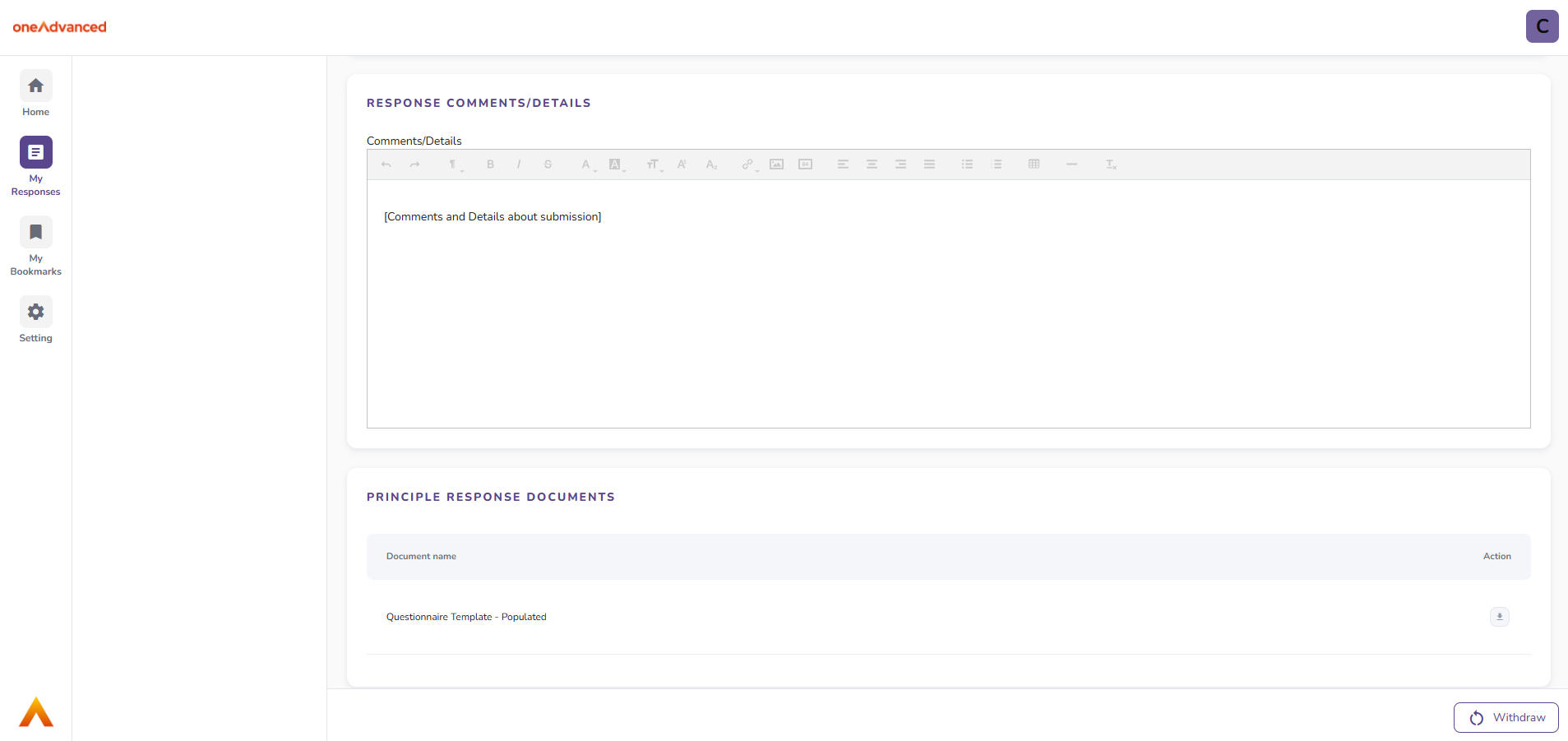
Once a bid has been submitted, suppliers have the option to withdraw it, as shown in the bottom‑right corner of the screen.
If a bid has been withdrawn, suppliers may choose to unwithdraw (reinstate) it, however, doing so will require the bid to be resubmitted.